STYLE LIBRARY × YOUR AI
Give your AI
a visual starting point.
Bring real website references into your workflow. Let your assistant find a style, see its screenshot, and read the colors, typography, and design details behind it.
Connect your AIPublic access. No API key. For tools that support remote MCP.
A REFERENCE YOUR AI CAN SEE
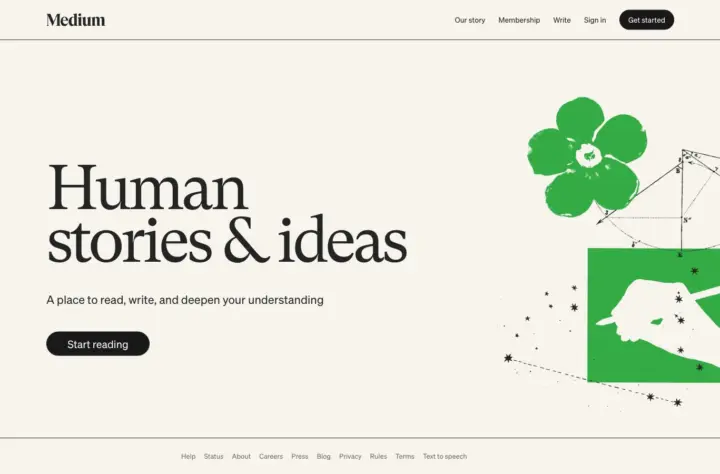
“Show me Medium’s design reference and screenshot. Help me adapt its visual direction to my project.”
Find a direction.
Search 1,000+ website references by brand, industry, typeface, or visual style.
See the reference.
Load screenshots hosted by Style Library as image responses for your assistant to inspect.
Bring the details.
Read available colors, typography, spacing, and design principles. Use them as a starting point for your own work.
Connect once.
Reference as you build.
Add Style Library as a remote MCP server in your AI tool. Choose Streamable HTTP if it asks for a connection type, then paste this URL.
Your app may ask you to enable or approve the tools. Connection options vary by app and plan.
Authentication: none · Access: public, read-only
Choose your AI
ChatGPT
- Open ChatGPT’s Settings → Security and login and enable Developer mode, if available.
- Open Plugins, select +, and add the server URL above. Name it Style Library; choose no authentication if asked.
- Create the plugin, open it in your personal plugins, and select + to install it.
- Start a new Work chat. Type @, select Style Library, and try the prompt below.
Availability depends on your account and workspace permissions. Official ChatGPT guide ↗
Codex
- With the Codex CLI installed, run this command in your terminal:
codex mcp add style-library --url https://styleslibrary.site/wp-content/themes/style-library/mcp/index.php- Start a new Codex session. In the CLI, use
/mcpto check that Style Library is available. - Ask Codex to search Style Library and load a reference’s screenshot.
Configuration alternative: add this to ~/.codex/config.toml. Do not replace your existing settings.
[mcp_servers.style-library]
url = "https://styleslibrary.site/wp-content/themes/style-library/mcp/index.php"Claude
- In Claude, open Customize → Connectors.
- Select + → Add custom connector.
- Name it Style Library, paste the server URL above, and select Add. Leave OAuth credentials blank.
- In a chat, open + → Connectors and enable Style Library.
For Team or Enterprise, an owner first adds the server under Organization settings → Connectors. Official Claude guide ↗
Cursor
- Open or create
.cursor/mcp.jsonin your project. For all projects, use~/.cursor/mcp.json. - Add this server configuration. Merge it with any servers already in the file:
{
    "mcpServers": {
        "style-library": {
            "url": "https://styleslibrary.site/wp-content/themes/style-library/mcp/index.php"
        }
    }
}- Save the file and check that Style Library’s tools are available in Cursor’s MCP settings.
- Ask Agent to search the library, fetch a style, and preview its screenshot. Approve tool use when prompted.
“Find Medium in Style Library, show me its screenshot, and explain its typography and colors.”